
Move your Valheim world to a dedicated server
Find your Valheim world, copy the 1.0 world folder or older .fwl and .db files to a dedicated server, and keep its world modifiers.
A dedicated server loads the world named in its -world argument from its worlds_local folder. Copy your world there under that name. Characters are saved on each player's PC, not in the world, so everyone keeps theirs.
1. Find your world
On Steam, Valheim saves a new world to Steam Cloud unless the cloud is full. Its folder in worlds_local then holds only the map caches (cacheMinimap… and …TexCache files), not the world.
- If the world is saved to the cloud, open Manage saves in the main menu and use Move to local on it. Or copy its folder from
Steam\userdata\<your Steam ID>\892970\remote\worlds, which has the same files. - Open the folder:
- Windows:
%USERPROFILE%\AppData\LocalLow\IronGate\Valheim\worlds_local - Linux:
~/.config/unity3d/IronGate/Valheim/worlds_local - A dedicated server:
worlds_localin its-savedir, or the path above when it has none.
- Windows:
A world saved by Valheim 1.0 is a folder named after it, holding:
_main.<n>.fwl2: the name, seed and modifiers._main.<n>.db2,_main.<n>.chunksand the.chunkfiles: the world itself._main.<n>.ok: marks a finished save.
The number goes up with each save. A world from an earlier version is two files instead, <name>.fwl and <name>.db.
2. Copy it to the server
- Stop the server with Ctrl + C so it saves.
- Back up the server's
worlds_localfolder. - Copy your world folder into the server's
worlds_local. - Either set
-worldto the folder's name, or rename the folder to the name in-world. Renaming keeps the world: the seed and everything built are inside the files. - Start the server.
Worlds from before 1.0
Copy <name>.fwl and <name>.db and rename both to the server's world name, such as Dedicated.fwl and Dedicated.db. A 1.0 server converts them when it starts and keeps the originals as Dedicated_backup_<time>. Leave out .old files and the _backup_auto copies.
Keep your world modifiers
The world remembers its modifiers, but a server started with -preset replaces them. To keep the ones you played with, start the server without -preset, -modifier or -setkey. See world modifiers.
If the server starts a new world
- The folder (or the
.fwland.db) is not named exactly as-world; names are case-sensitive on Linux. - It is not directly in
worlds_localof the save folder the server uses. - To go back, stop the server and copy back the backup from step 2.
Upload it, any name
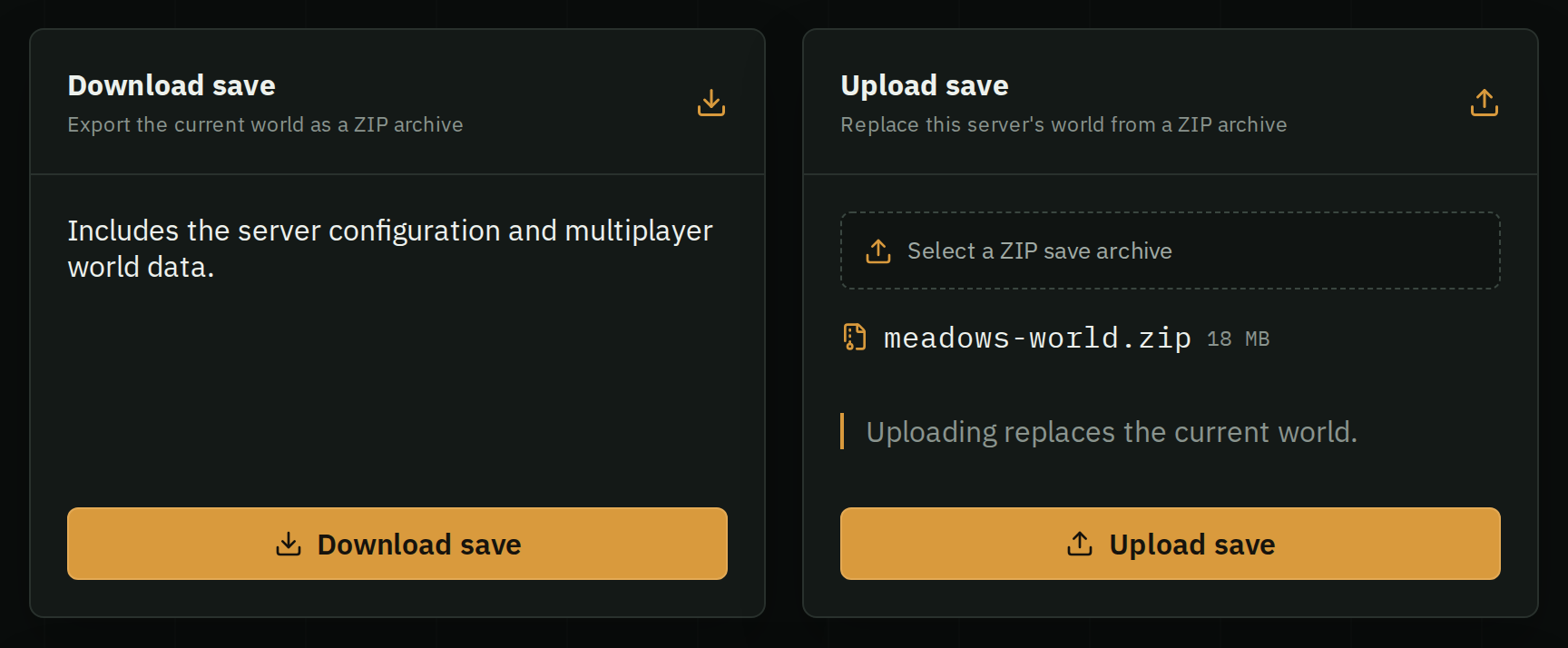
ZIP your world folder, or the .fwl and .db of an older world, stop your server and use Backups › Upload save. A .tar.gz backup from another host works too. HostForge finds the world and renames it to the one the server loads. Set the world modifiers to As saved in the world to keep your own. One world per ZIP, up to 256 MB.
New to dedicated servers? Start with setting one up.