
Add mods to a Valheim dedicated server
Install BepInEx on a Valheim dedicated server, add Thunderstore mods and what they need, and give players the same mods with r2modman.
Valheim has no mod support of its own. Mods are plugins for BepInEx, a loader that starts inside the game, and nearly all of them are on Thunderstore, the site r2modman installs from. On a server, the rule is simple: the server and every player run the same mods, at the same versions.
Install BepInEx on the server
Download BepInExPack Valheim by denikson from Thunderstore. Inside the ZIP, the BepInExPack_Valheim folder holds a BepInEx folder, a doorstop_libs folder and a few files. Copy all of it into the dedicated server's folder, next to valheim_server.
- Windows: the pack's
winhttp.dllloads BepInEx when the server starts, so start it the way you always do. - Linux: start the server with
start_server_bepinex.shinstead. Edit its last line to your server's name, world and password first. It setsDOORSTOP_ENABLED=1, pointsDOORSTOP_TARGET_ASSEMBLYatBepInEx/core/BepInEx.Preloader.dlland preloadslibdoorstop_x64.so.
BepInEx writes its log to BepInEx/LogOutput.log. When it works, the log says Chainloader startup complete (2 loaded, 0 skipped, 0 failed), with the number of mods it loaded.
Add mods
- Stop the server.
- Download each mod from Thunderstore and put its files in a folder of its own in
BepInEx/plugins. - Do the same for what it needs: each mod's page lists its dependencies, often Jötunn or a JSON or YAML library.
- Start the server. Each mod writes its settings to
BepInEx/configon its first start; stop the server, edit the file and start it again to change them.
Many server mods sync their settings to players when they join, so the server's file wins. Mods that only change what you see, such as a minimap or a HUD, belong on the players' computers, not the server.
Give players the same mods
The easy way is an r2modman profile. Set up the server's mods in r2modman on your own computer, then open its settings and choose Export profile, As a code. Players import that code, pick Import new profile and start the game with Start modded. Joining a modded server walks them through every step.
The export also holds your configuration files, so leave out any with passwords or webhook links before you share the code. It installs the exact versions in the profile: when you update a mod on the server, export a new code and send it round.
After a Valheim update
A Valheim update can break mods until their authors catch up. Steam updates players' games at once, so the server has to follow. Update the dedicated server, then check each mod's Thunderstore page for a new version, update the mods on the server and send players a new code. Most popular mods are updated within days.
Common mistakes
- A player missing a mod, or on another version: mods that check versions, such as those built on Jötunn, refuse the connection and list the mods that differ. Import the server's current code again.
- Forgetting a dependency: the mod is skipped, and
LogOutput.lognames what it was missing. - Starting the Linux server with its usual start script, which never loads BepInEx: the log has no
Chainloaderline. - Unpacking a mod straight into
pluginsso its files mix with another's: give each mod its own folder.
Pick mods, HostForge does the rest
Your server's Mods tab searches Thunderstore. Add a mod and HostForge adds what it needs and BepInEx with it, pinned to exact versions, and installs them when the server next starts. When a mod has a new version, Update all moves the server to it.
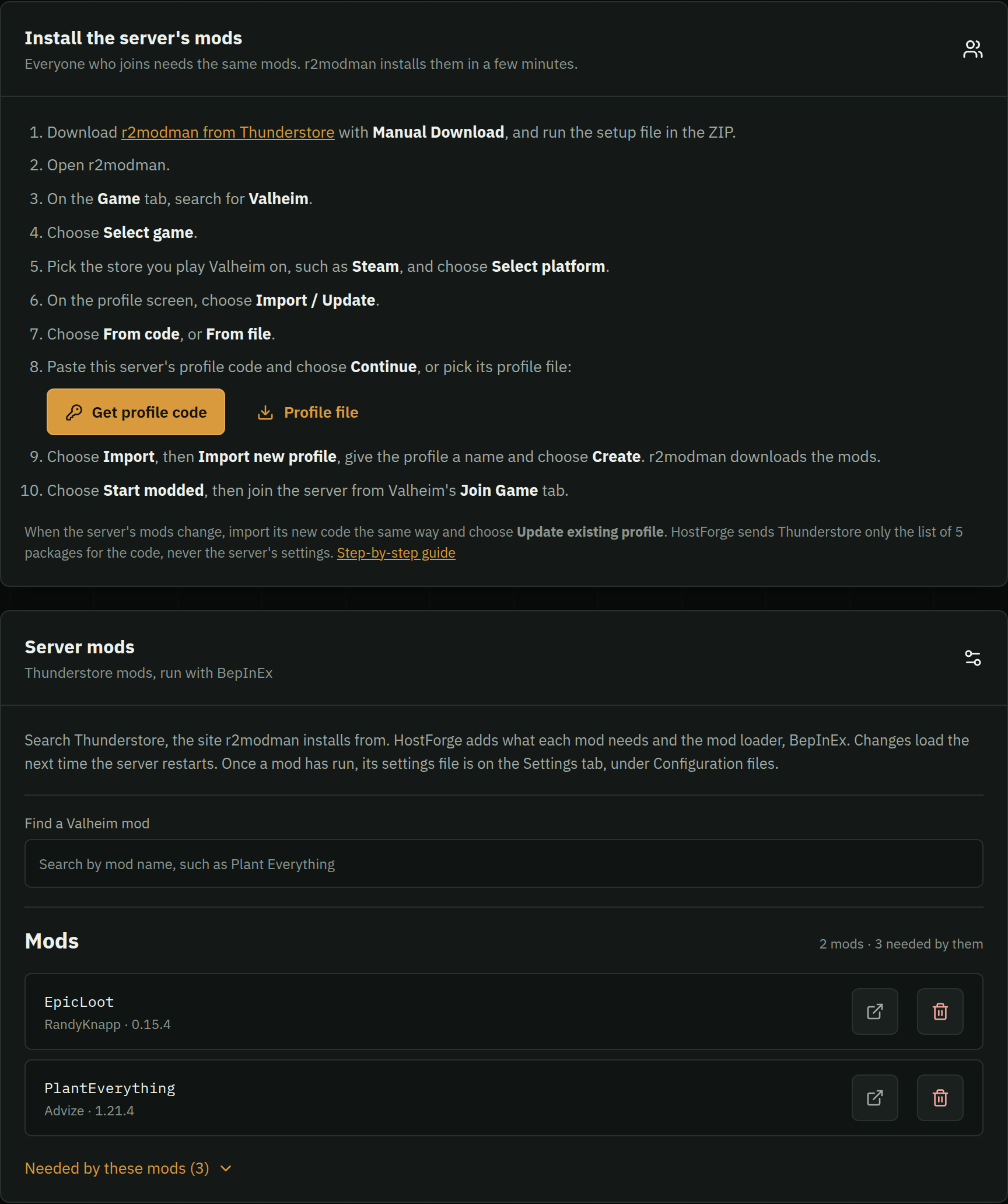
The same tab gives players the server's r2modman profile code and file, with the steps to import them, so everyone installs exactly the mods the server runs. The code never holds the server's settings. Each mod's settings file shows up on the Settings tab under Configuration files, and save downloads and backups keep them.
New to dedicated servers? See setting up a dedicated server.