
Join a modded Valheim server with r2modman
Install a modded Valheim server's mods with r2modman: pick Valheim, import the server's profile code or file, then start modded and join.
A modded Valheim server only lets in players who run the same mods, at the same versions. Installing them one by one is slow and easy to get wrong. r2modman, the free mod manager for Thunderstore, installs the whole list from one profile code or profile file, BepInEx included, and keeps it apart from your normal game.
What you need
- Valheim on Steam, on Windows or Linux, or on Xbox Game Pass for Windows.
- The server's profile code or profile file, from whoever runs the server.
- The server's address and password.
Install r2modman
- Open r2modman on Thunderstore and choose Manual Download.
- On Windows, open the ZIP, run
r2modman Setup X.X.X.exeand follow the installer. On Linux, extract the ZIP and runflatpak-setup.sh, or make the AppImage executable and run it; don't use the.exe. - Open r2modman.
Download r2modman only from Thunderstore, its GitHub releases or ebkr.dev: its authors name those three as the only safe places.
Pick Valheim
- On the Game tab, type Valheim into Search for a game.
- Choose Select game on Valheim.
- r2modman asks Which store manages your game? Pick Steam or Xbox Game Pass and choose Select platform.
Import the server's profile
- On the profile screen, choose Import / Update.
- Choose From code and paste the profile code, then choose Continue. With a profile file, choose From file and pick the
.r2zfile instead. - r2modman lists the Packages to be installed. Choose Import.
- Choose Import new profile, give it a name, such as the server's, and choose Create.
- Wait while r2modman downloads the mods.
Start modded and join
- Choose Start modded. Valheim starts with BepInEx and the profile's mods.
- Choose Start Game and a character, open Join Game, choose Add server and enter the server's address as
IP:port. - Select the server, choose Connect and type its password.
Always start the game from r2modman. Steam's Play button starts Valheim without mods, so a modded server turns you away. More on the join screen in joining a Valheim server by IP.
When the server's mods change
Get the server's new code, then choose Import / Update again and paste it. This time pick Update existing profile and the profile you made before: r2modman replaces its mods with the server's list.
Fix common problems
- Invalid code, check for typos: copy the code again, all of it, with nothing before or after it.
- These packages in the profile were not found on Thunderstore: a mod was removed from Thunderstore. Ask the server owner to update or drop it, then import the new code.
- The server turns you away or lists mods that differ: your profile is older than the server's mods. Import the current code with Update existing profile.
- The game has no mods: it was started from Steam. Close it and choose Start modded in r2modman.
The code is on the server's Mods tab
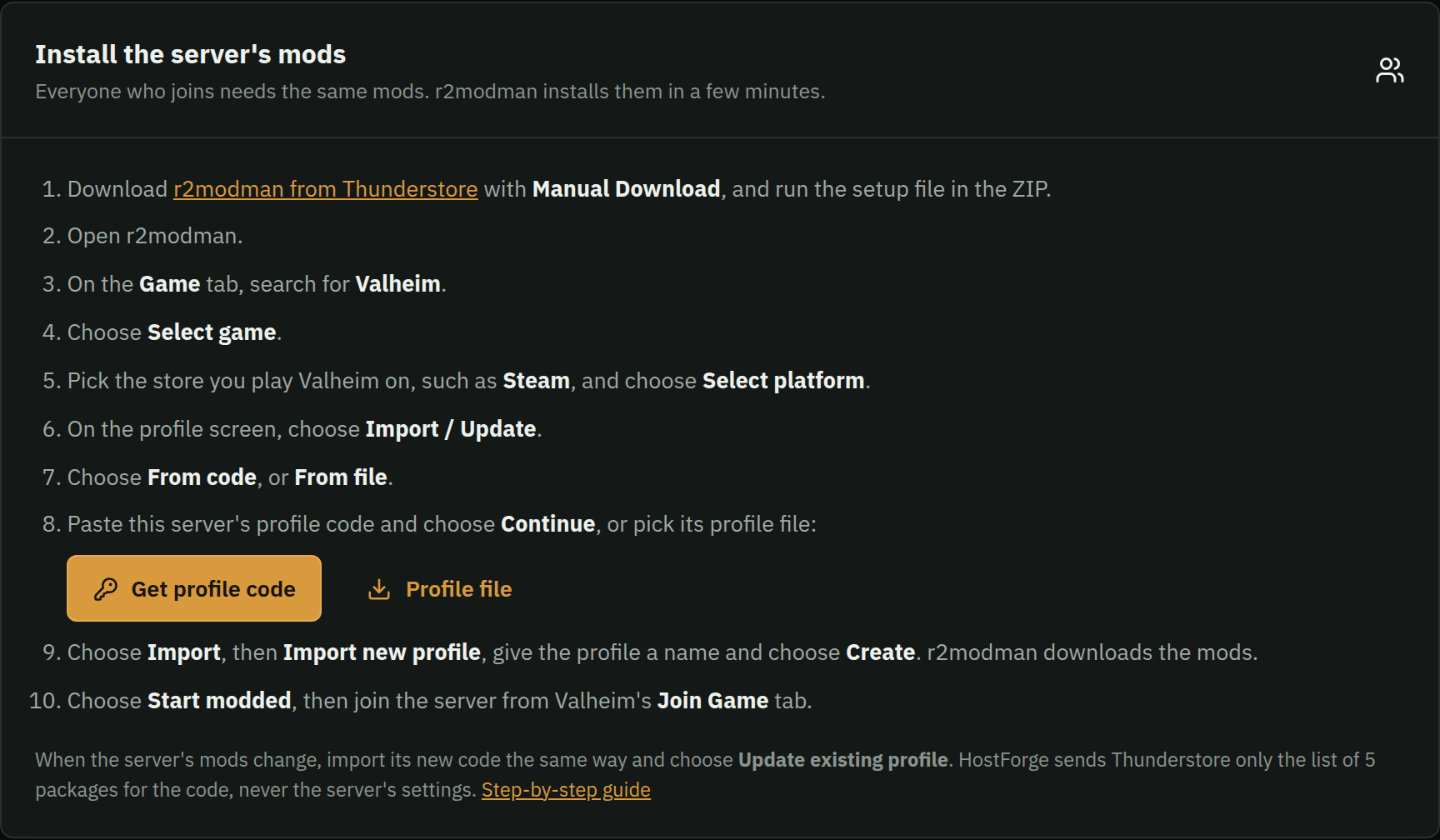
A modded HostForge Valheim server shows these steps on its Mods tab, with Get profile code and the Profile file download for the exact mods it runs. A public server shows them to anyone, so friends can set up before they join. The code holds the list of mods only, never the server's settings.
Running the server yourself? See adding mods to a Valheim dedicated server.