
Valheim server admins, bans and the permitted list
Make yourself admin on a Valheim server with adminlist.txt, find player IDs, ban and kick from the F5 console, and use permittedlist.txt.
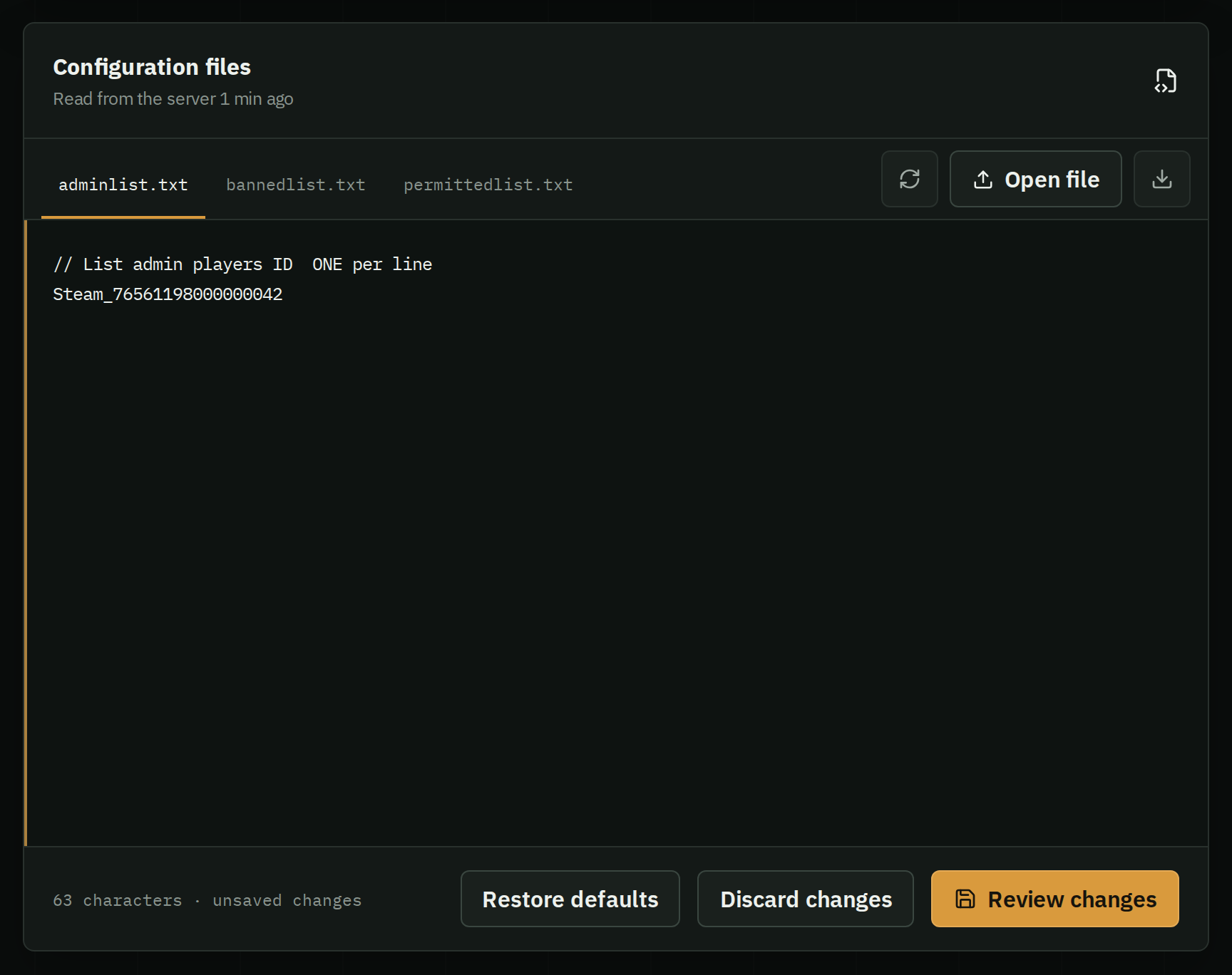
A Valheim server has no admin password. Three text files in its save folder decide who is an admin, who is banned and who may join at all. Each lists one player ID per line.
The three lists
adminlist.txt: admins, who can kick and ban from the in-game console.bannedlist.txt: players who can't join.permittedlist.txt: an allow list. Once anyone is on it, only the players on it can join.
They sit next to the worlds_local folder: in the server's -savedir, or %USERPROFILE%\AppData\LocalLow\IronGate\Valheim on Windows and ~/.config/unity3d/IronGate/Valheim on Linux when it has none. The server creates them on its first start, with a comment line at the top.
Find a player's ID
IDs look like Steam_76561198000000000: the platform, an underscore, then the account ID. They are case-sensitive.
- In the game, press F2 to open the panel that shows your ID.
- In the server log, each player who connects shows up as
Got connection SteamID 7656…; putSteam_before the number. - Players on other platforms, through crossplay, have IDs with their own platform name in front.
Add someone
- Stop the server with Ctrl + C.
- Open the list in a text editor and add the ID on a line of its own, under the comment line.
- Save the file and start the server.
Admin commands
Admins open the console with F5. If it doesn't open, turn on Enable Console in the game's settings, or start the game with -console.
kick <name/ip/userID>: kick a player.ban <name/ip/userID>: ban a player; it adds them tobannedlist.txt.unban <ip/userID>: lift a ban.banned: list banned players.save: save the world now, before a backup or a restart.
Common mistakes
- Adding the bare number: it needs the platform in front, such as
Steam_. - Putting your friends on
permittedlist.txtand forgetting yourself: everyone not on it is turned away. - Typing an ID by hand: copy it exactly as the F2 panel or the log shows it, one per line.
Edit the lists from your browser
Your server's Settings tab opens all three lists under Configuration files. Add an ID, save, and HostForge writes the file the next time the server starts. Restore defaults empties a list back to its comment line.
Still setting up? See setting up a dedicated server.