Set up a Valheim dedicated server
Install the Valheim dedicated server with Steam Tools or SteamCMD, set a name, world and password, open UDP ports 2456 and 2457, and get your group in.
The Valheim dedicated server keeps your world online without anyone hosting from their game. It runs on Windows and Linux. On a new world it uses about 1.3 GB of memory, growing as your group explores and builds.
1. Install the server
In your Steam library, turn on Tools and install Valheim Dedicated Server. Or download it with SteamCMD (Steam app 896660, no login needed):
steamcmd +force_install_dir ./valheim-server +login anonymous \
  +app_update 896660 validate +quit
On Linux, also install libatomic1 and libpulse0, plus libpulse-mainloop-glib0 if you want crossplay.
2. Edit the start script
Make a copy of start_headless_server.bat (Windows) or start_server.sh (Linux) in the server folder; Steam resets the original on every update. In your copy, set:
-name "My server": the name in the server list.-world "Dedicated": the world to load, created if it doesn't exist.-password "…": at least 5 characters. With a shorter one the server logsError bad passwordand never opens.-port 2456: the server also uses the next port, 2457.-public 1lists it in the in-game Community list;-public 0keeps it out, so players join by address.-crossplay(optional) lets players on every platform join, with a join code.
-savedir changes where worlds are kept, and -preset and -modifier set the world modifiers.
3. Start it
- Run your script.
- The first start generates the world, which takes a minute or so. The server is ready when the log shows
Opened Steam server(orOpened PlayFab serverwith crossplay). - Stop it with Ctrl + C, never by closing the window, so it saves the world first.
4. Open the ports
- Allow UDP
2456and2457through the firewall. - At home, forward both from your router to the server's local IP address.
- A crossplay server connects through a relay and needs no forwarding, but players can't join it on a local or loopback address.
5. Join
In Valheim, choose Start Game, pick a character, open Join Game and choose Add server. Enter your public IP address as IP:2456, select the server, choose Connect and type the password. More in joining a server by IP.
Keeping it running
- Players can only join a server on their game version. After a Valheim update, update the server (Steam or SteamCMD) and restart it.
- The server saves every 30 minutes (
-saveinterval, in seconds) and when it stops. An admin can typesavein the F5 console to save now. - It keeps a few backups of its own (
-backups), but copy theworlds_localfolder elsewhere now and then. - Give yourself admin rights in
adminlist.txt; see admins and bans.
Skip all of this
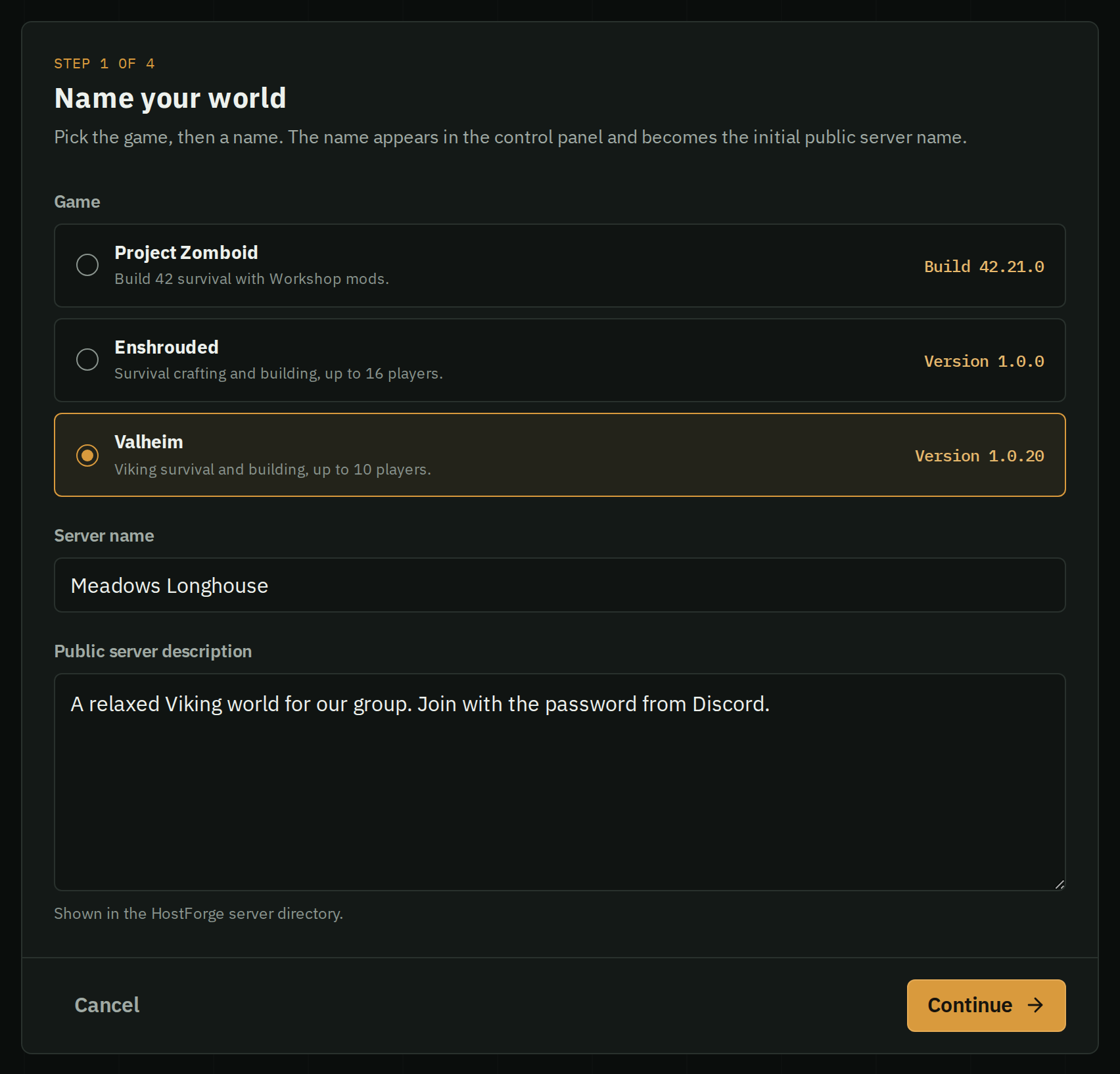
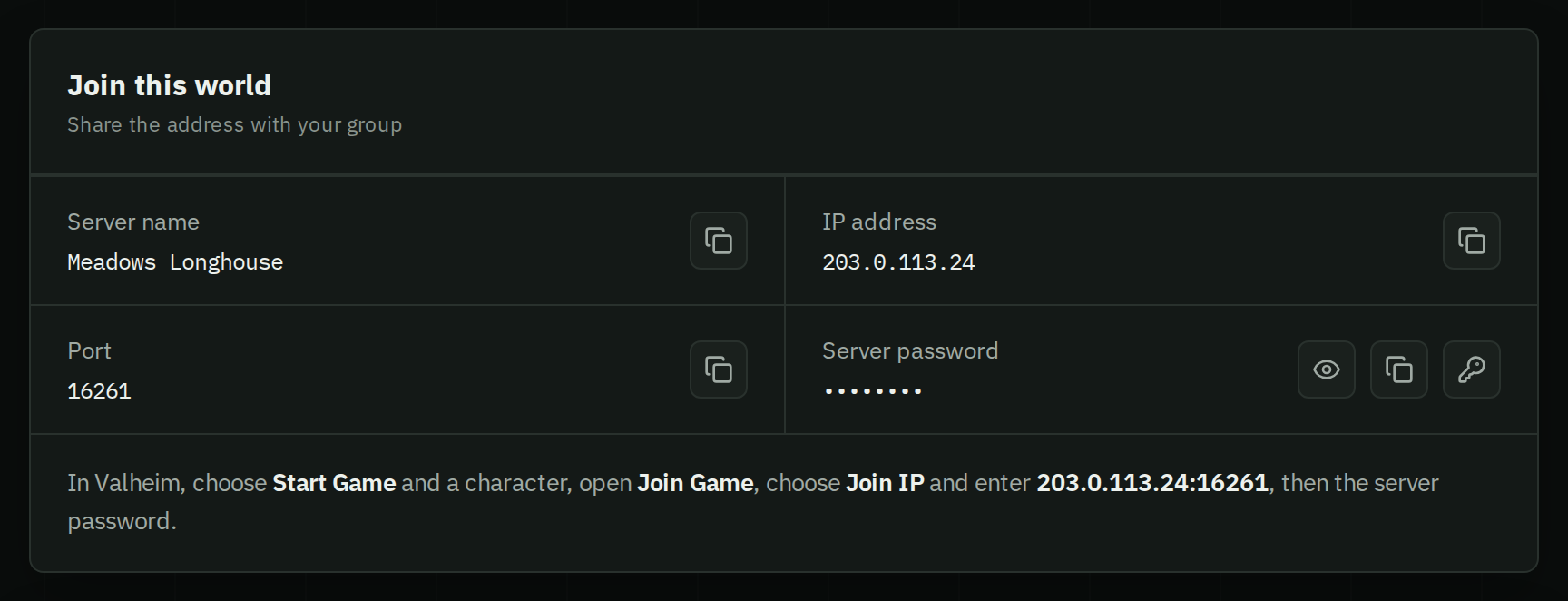
Pick Valheim, a name, a region and a password, and start it. HostForge runs the server, opens the ports, prepares each new game version so a restart moves you onto it, and backs the world up every day. You get an address to share.