
Run the Project Zomboid unstable (Pre-Release) build on a server
Play the next Project Zomboid update early: switch your game and server to the Pre-Release branch, keep saves safe, stay updated and go back to stable.
New Project Zomboid updates reach the Pre-Release branch on Steam before everyone else gets them. Pre-Release is what used to be called Unstable; The Indie Stone renamed the branch in October 2026. Right now Pre-Release is Build 42.22.0 and the default (stable) branch is Build 42.21.0.
A build stays on Pre-Release for at least a week before it moves to stable, and it can change again during that week if testing finds bugs. It suits server admins, modders and groups who want the new content early and don't mind the odd broken thing.
Back up your world before it runs on Pre-Release. A save opened on a newer build may not load on stable again, and mods that have not caught up can break.
1. Every player switches the game
The server and every player must run the same build, so everyone who joins switches their game to Pre-Release:
- Right-click Project Zomboid in your Steam library.
- Choose Properties.
- Under Game Versions & Betas, choose Pre-Release.
Steam downloads the update. Back up any singleplayer saves you care about first; they move to the new build too.
2. Switch your own dedicated server
Windows: in your Steam library, right-click Project Zomboid Dedicated Server (under Tools), choose Properties › Game Versions & Betas and pick Pre-Release.
Linux: run SteamCMD with the pre-release branch instead of public:
steamcmd +force_install_dir ~/pzserver +login anonymous \
  +app_update 380870 -beta pre-release validate +quit
Stop the server first, and copy Zomboid/Saves/Multiplayer and Zomboid/Server somewhere safe. Then start it as usual. New setup? Follow the dedicated server guide and use the command above for the install.
3. Keep it updated
Pre-Release builds change more often than stable ones, and players get each one from Steam straight away. When players see a version mismatch, run the same SteamCMD command again (Windows: let Steam update the tool) and restart the server.
Going back to stable
Switch each game back to None under Game Versions & Betas, and the server back to the public branch:
steamcmd +force_install_dir ~/pzserver +login anonymous \
  +app_update 380870 -beta public validate +quit
If the world will not load on stable, restore the backup you made before switching. Once the build you played reaches stable, usually a week or two later, the world loads there too.
Run the unstable build on HostForge
New server: on the first step of Create server, choose Project Zomboid and set Game version to Unstable.
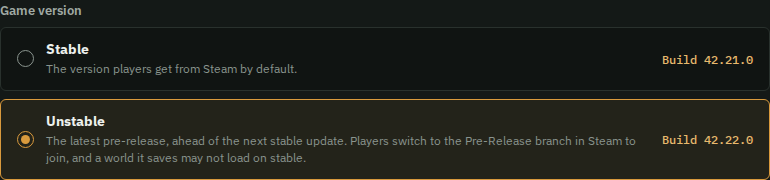
Existing server: open its Settings tab, set Game version to Unstable and save. The switch applies the next time the server starts, like other settings, so restart it when your group is ready. Download a backup from the Backups tab first.
Updates: HostForge checks Steam every hour. When a new Pre-Release build comes out, your server page shows Update to the new build; press it, or the server picks the build up at its next restart. Your world, settings and mods stay as they are.
Back to stable: set Game version to Stable in the same place. HostForge reminds you that a world saved on unstable may not load on stable; if it doesn't, restore the backup from before the switch, or wait for the build to reach stable.