Move a Project Zomboid save to a new server without losing characters
Why characters vanish when a Project Zomboid world moves to another server, how players.db ties them to the server name, and how to move a save safely.
Characters are saved in players.db under the server's name. Move the world to a server with the same name and everyone keeps their character. If the name changes, update players.db (step 4) or everyone starts over.
1. Find the world
The world folder and three settings files are named after the server, servertest by default:
- Windows (dedicated server or a co-op game you hosted):
C:\Users\YourName\Zomboid\Saves\Multiplayer\servertestand, inC:\Users\YourName\Zomboid\Server,servertest.ini,servertest_SandboxVars.luaandservertest_spawnregions.lua. - Linux: the same under
~/Zomboid/Saves/Multiplayerand~/Zomboid/Server. - Another host: the same
Zomboidfolders in its file manager or over SFTP.
Singleplayer saves (Saves/Apocalypse, Saves/Sandbox and so on) are not multiplayer worlds and can't be moved this way.
2. Copy it
- Stop the old server: type
save, thenquitin its console. - Make a backup copy of the world folder.
- Copy the world folder into
Zomboid/Saves/Multiplayeron the new server. - Copy the three settings files into
Zomboid/Server.
3. Start with the same name
- Install the same Workshop mods on the new server, or the world loads with missing items.
- Start the server under the old name. On Linux:
-servername servertest. - Players join with the same Steam account and username as before.
4. If the server name changed
- Rename the world folder and the three files to the new name (
newname,newname.ini,newname_SandboxVars.lua,newname_spawnregions.lua). - Open
players.dbin the world folder with a SQLite editor, such as DB Browser for SQLite, and run:UPDATE networkPlayers SET world = 'newname' WHERE world = 'servertest'; - Write the changes, close the editor and start the server.
Accounts and admins
Server accounts and admin rights are kept in Zomboid/db/servertest.db, not in the world. Copy that file too (renamed if the name changed), or let players sign in again with their old username and give admin back in the console:
setaccesslevel "username" adminIf characters don't show up
- Everyone is new: the server name doesn't match the
worldvalue inplayers.db. Do step 4. - One player is new: they joined with a different username or Steam account.
- Items or buildings are missing: a mod the world used is not installed.
- A Build 41 world: it can't be continued on a Build 42 server.
Upload the world, keep the characters
HostForge does the renaming and the players.db update for you:
- ZIP your world with its folders:
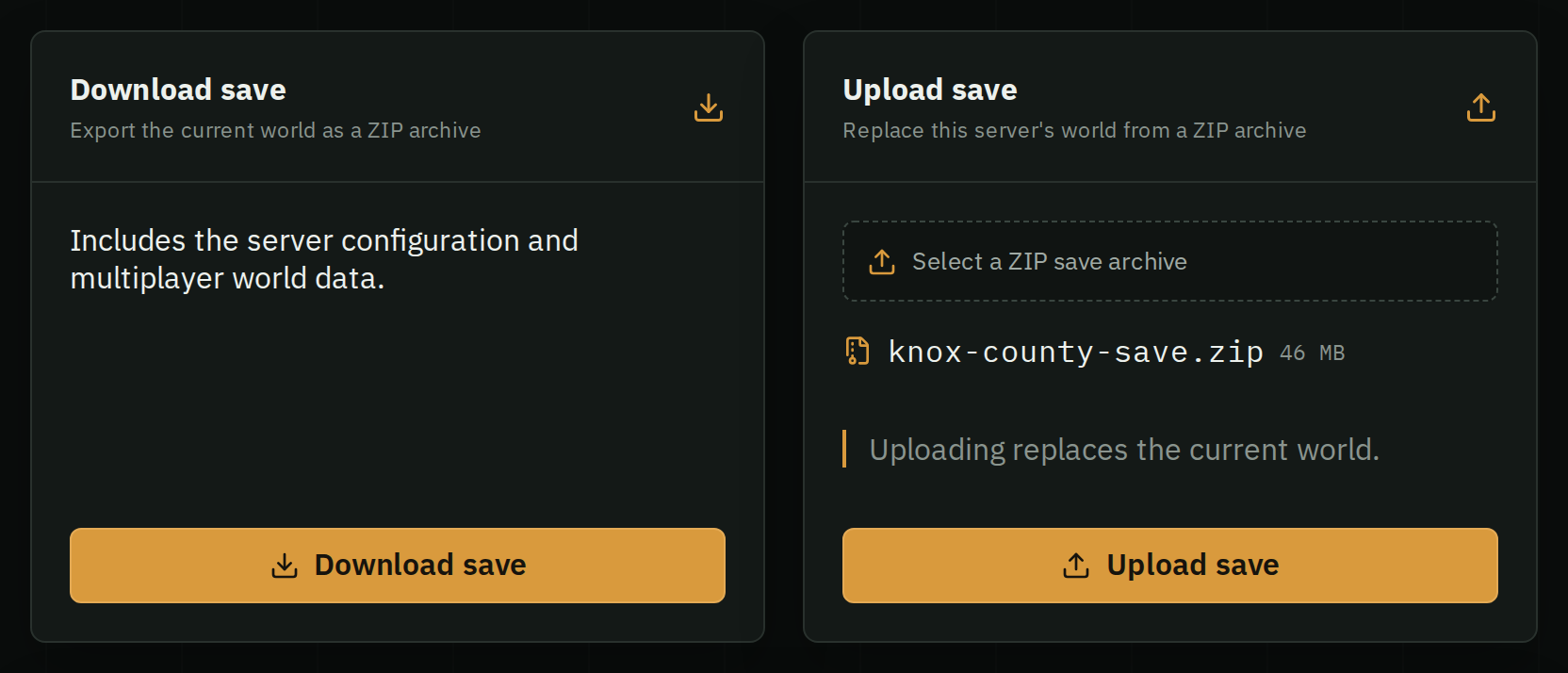
Saves/Multiplayer/servertest/…, plusServer/with the settings files if you want them. - Stop your server and open Backups › Upload save. Choose the ZIP and select Upload save.
- Add the same mods in the Mods tab, then start the server.