Set up a Project Zomboid Build 42 dedicated server
Install the Project Zomboid dedicated server with Steam or SteamCMD, give it memory, start it, open UDP ports 16261 and 16262, and get your group in.
A dedicated server keeps your world online when nobody is hosting from their game. You need a PC or VPS that stays on, about 8 GB of memory for a small group (more with many mods), and a connection your friends can reach.
1. Install the server
Windows: in your Steam library, switch the filter to Tools, find Project Zomboid Dedicated Server and install it. It is free; you don't need a second copy of the game.
Linux: install SteamCMD, then download the server (Steam app 380870) into a folder of your choice:
steamcmd +force_install_dir ~/pzserver +login anonymous \
  +app_update 380870 -beta public validate +quit
2. Give it memory
Open ProjectZomboid64.json in the server folder and change the -Xmx value to the memory the server may use, for example -Xmx8g for 8 GB. Leave some memory for the system.
3. Start it
Windows: run StartServer64.bat from the server folder. The first start asks you to choose an admin password.
Linux:
cd ~/pzserver
./start-server.sh -servername myserver -adminpassword "choose-one"
The first start creates the world and the settings files in Zomboid/Server, named after the server (servertest unless you pass -servername). Type quit in the server console to stop it cleanly.
4. Change the settings
With the server stopped, edit servertest.ini: set PublicName, MaxPlayers and a Password if you want one. World rules such as zombie population are in servertest_SandboxVars.lua. See every setting explained, and adding Workshop mods.
5. Open the ports
- The server uses two UDP ports:
16261and16262. - Allow both through the firewall on the server machine.
- At home, forward both from your router to the server's local IP address. On a VPS, open them in the provider's firewall.
6. Join
In Project Zomboid, choose Join and add a server with your public IP address and port 16261, plus the password if you set one. Each player picks a username and password the first time they join. To join as admin, use the username admin and the admin password from step 3.
Keeping it running
- The server and every player must run the same game version. After a game update, update the server too (Steam does it for the Windows tool; on Linux, run the SteamCMD command again) and restart it.
- Back up
Zomboid/Saves/MultiplayerandZomboid/Serverregularly. See how to move a save if you change machines.
Skip all of this
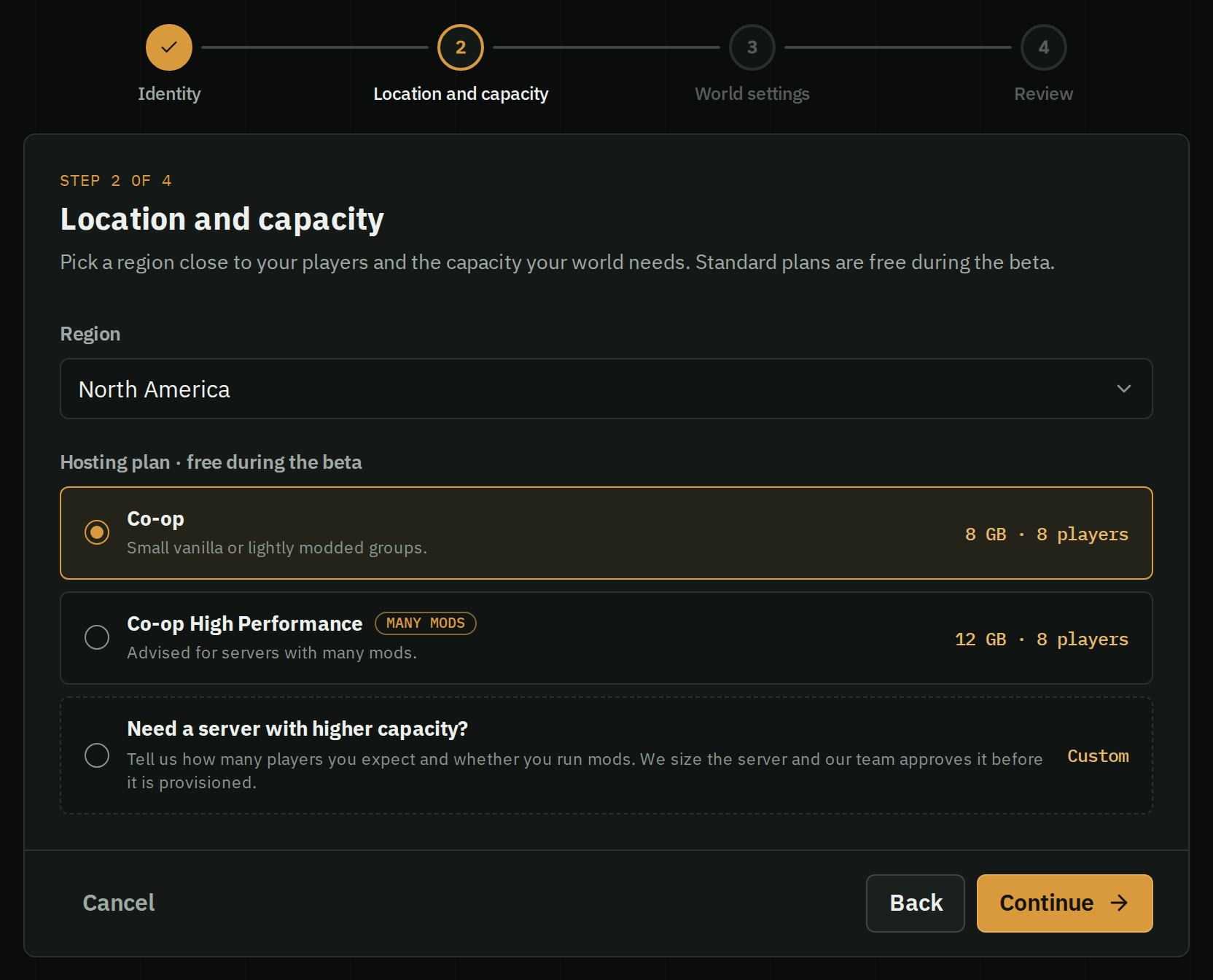
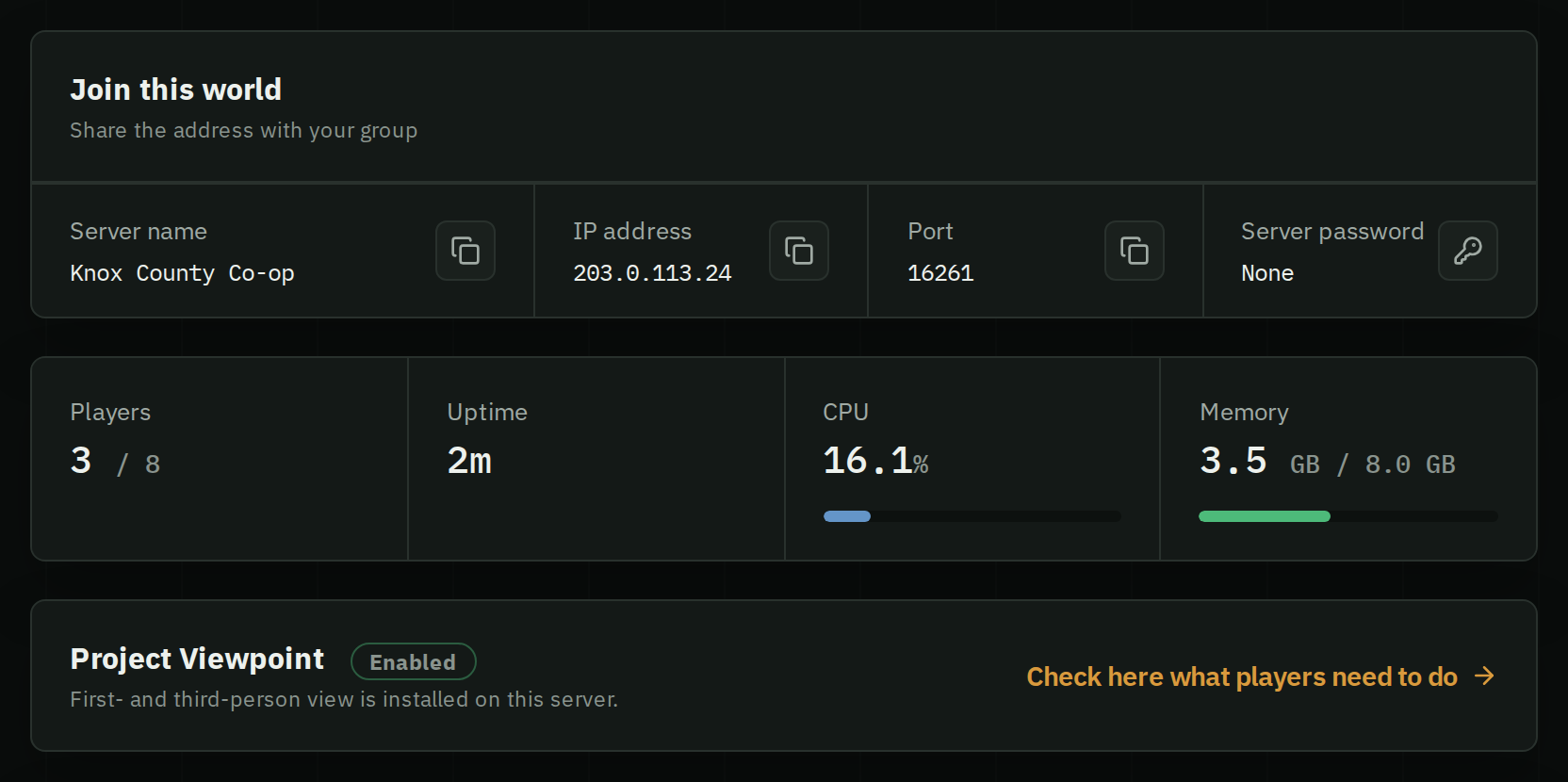
On HostForge you name your world, pick North America or Europe and start it. HostForge installs the server, opens the ports, sets the memory for your plan and backs the world up every day. You get an address to share.