
Set up and join a Satisfactory dedicated server
Install the Satisfactory server with SteamCMD, open UDP and TCP 7777 and TCP 8888, claim it, join from Server Manager and load your own save on it.
The Satisfactory dedicated server is a free Steam download that runs on Linux and Windows. It starts empty: the first player to reach it claims it with an admin password, then creates or uploads a game.
1. Install it with SteamCMD
steamcmd +force_install_dir ~/satisfactory +login anonymous +app_update 1690800 validate +quitThe Linux server is about 1.5 GB to download and 2.8 GB installed. Run the same command again to update it; players can only join a server on their own game version.
2. Start it
~/satisfactory/FactoryServer.sh -Port=7777 -ReliablePort=8888 -log -unattendedIt is up within a few seconds, with the game and its HTTPS server API on port 7777 and the reliable-messaging port on 8888.
3. Open the ports
- 7777 UDP: the game.
- 7777 TCP: the server API, which the game's Server Manager uses to reach and manage the server.
- 8888 TCP: reliable messaging.
Change them with -Port and -ReliablePort, and forward the same numbers on your router.
4. Claim it and start a game
In the game, open Server Manager, add the server's address and claim it: give it a name and an admin password. Then create a game (the starting location and whether to skip the tutorial) or upload a save, and set a player password if you want one. See claiming a server and its passwords.
Where it keeps its files
- Saves:
~/.config/Epic/FactoryGame/Saved/SaveGames/serveron Linux. - Settings:
FactoryGame/Saved/Config/LinuxServerbeside the server (Game.ini,Engine.ini). - The player limit is 4 unless
Game.iniraises it:[/Script/Engine.GameSession]thenMaxPlayers=8.
How much memory it needs
A new game took about 2.7 GB before anyone joined. Every machine, belt and train adds to that, so plan on 8 GB for an early factory and 12 GB or more for a late-game one.
Join a Satisfactory dedicated server
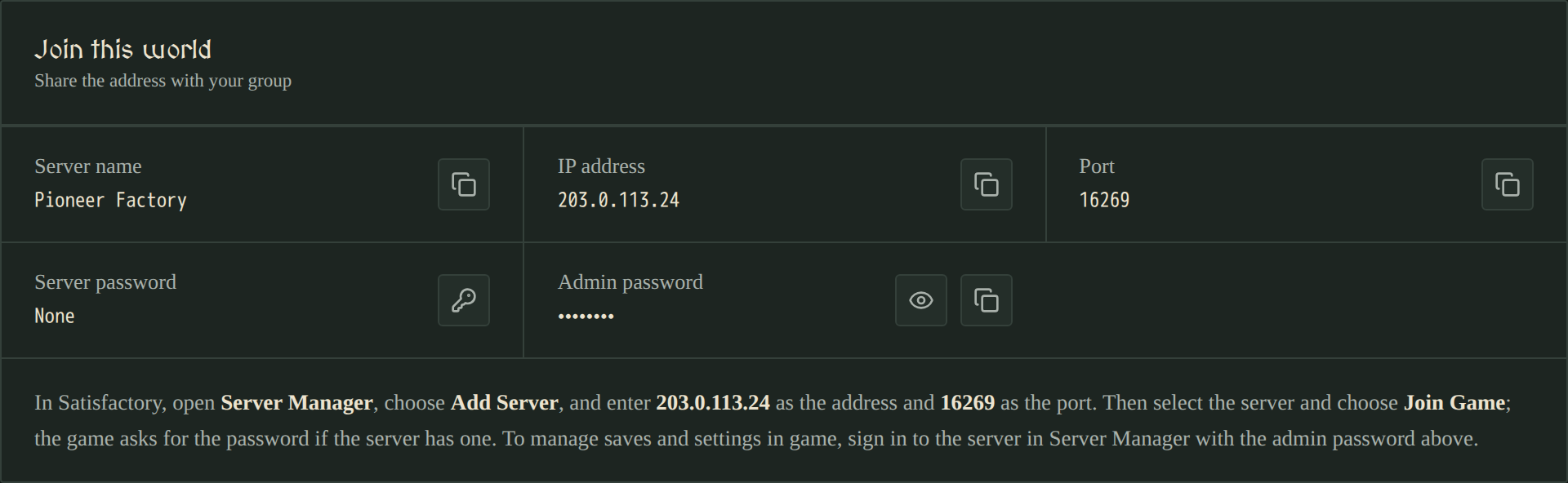
You need the server's address and port, as the host gives them, and the player password if it has one. Dedicated servers aren't in a public list: you add them by address.
Add the server and join
- From the main menu, open Server Manager.
- Choose Add Server and enter the address and port, for example
203.0.113.24and7777. - Select the server in the list. If it asks, type the player password.
- Choose Join Game.
Become the server's admin
In Server Manager, sign in to the server with its admin password instead of the player password. As administrator you can create and load sessions, upload saves and change the server's settings.
If you can't join
- Version mismatch. Your game and the server must be on the same version. After an update, the server must update too.
- The server stays offline in Server Manager. The host must open the game port over both UDP and TCP, and the reliable-messaging port over TCP.
- Wrong password. The player and admin passwords are different; ask the host for the player one.
- The server is full. It takes 4 players unless the host raised
MaxPlayersinGame.ini.
On HostForge
The Overview tab shows the address and port to share, the player password and the admin password. Every port is open, and the server is kept on the current game version.
Move your Satisfactory save to a server
A Satisfactory save is one .sav file, so moving your factory from your own game to a dedicated server is copying that file and loading it.
1. Find the save
- Windows:
%LOCALAPPDATA%\FactoryGame\Saved\SaveGames\<your id>(paste it into File Explorer's address bar). - A Linux server:
~/.config/Epic/FactoryGame/Saved/SaveGames/server.
Each session has several files: your saves, autosaves (_autosave_0 and on) and the one written when the last player left. Take the newest.
2. Check the version
A save records the game build that wrote it. A server can load a save from its own version or an older one, never a newer one, so update the server first if your game is newer.
3. Load it on the server
- In Server Manager, sign in to the server as its administrator.
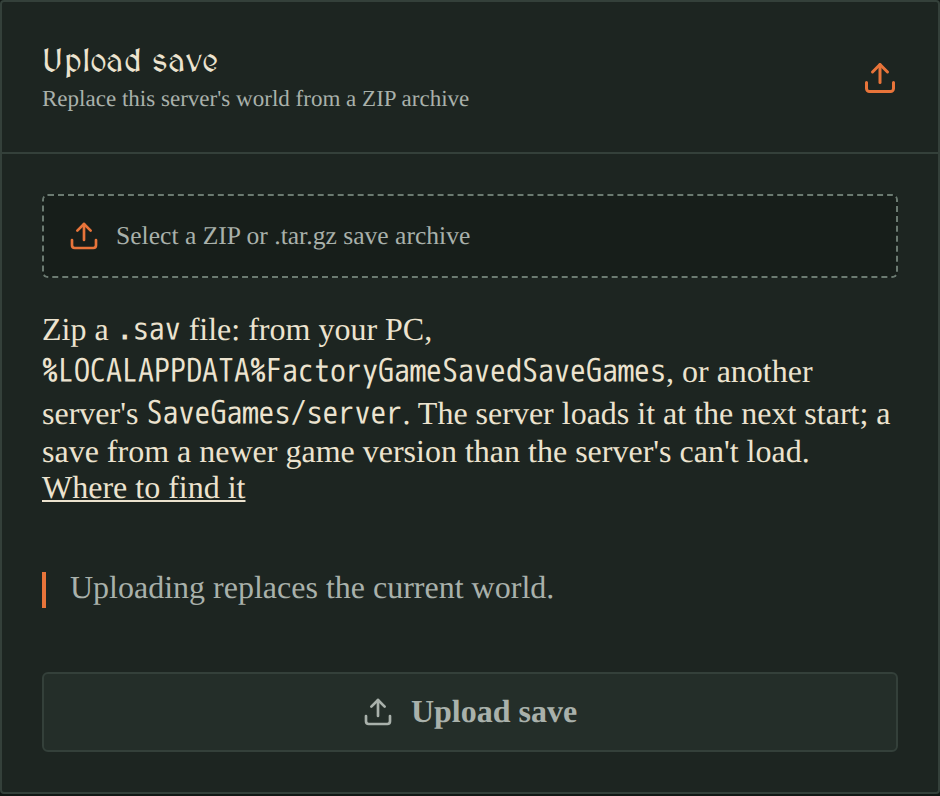
- Upload the save from the server's saves tab, then load it.
- Or copy the file into the server's saves folder while it is stopped, and load it from Server Manager after the start.
On HostForge
Stop the server, open Save and upload a ZIP of the .sav file, or a .tar.gz backup from another host. HostForge takes the newest save in it, refuses one from a newer game version, and the server loads it at the next start.
A Satisfactory server on HostForge
HostForge installs and updates the server, opens all three ports, claims it with an admin password, starts your game or loads your save, saves before every stop and backs it up daily.
Then join it from Server Manager, or start a free one on HostForge.