
Set up and join a Rust dedicated server
Install the Rust server with SteamCMD, start it with its launch options, open the ports, join with client.connect and move a world to another server.
The Rust dedicated server is a free Steam download that runs on Linux and Windows. It takes its settings as launch options and generates its map on the first start.
1. Install it with SteamCMD
steamcmd +force_install_dir ~/rust +login anonymous +app_update 258550 validate +quitIt is about 7.5 GB. Run the same command again to update it: players can only join a server on their game's version.
2. Start it
./RustDedicated -batchmode -nographics -logfile server.log \
  +server.port 28015 +server.queryport 28016 \
  +rcon.port 28017 +rcon.web 1 +rcon.password "a long secret" \
  +server.identity myserver +server.level "Procedural Map" \
  +server.worldsize 3000 +server.seed 1337 +server.maxplayers 10 \
  +server.hostname "My Rust server"
On Linux, start it from its folder with RustDedicated_Data/Plugins and its x86_64 folder on LD_LIBRARY_PATH. It is ready when the log says Server startup complete: one to two minutes the first time, while it generates the map, and well under a minute after that.
3. Open the ports
- server.port, UDP: the game.
- server.queryport, UDP: the server browser's queries.
- rcon.port, TCP: WebRCON. Keep it closed to the internet unless you use a remote admin tool.
Where it keeps its files
Everything is in server/<identity> beside the program: the world (proceduralmap.<size>.<seed>.<version>.sav), the player databases (blueprints, states, identities…) and cfg with users.cfg (owners and moderators), bans.cfg and your own server.cfg.
How much memory it needs
With nobody on, a 2000 map took about 3 GB and a 3000 map about 4 GB. Bases and deployables add to it through a wipe, and bigger maps take more: plan on 8 GB for a small group and 12 GB for 3500 and 4000 maps.
Join a Rust server by IP
You need the server's address and game port. Rust servers have no password, so that is all.
Join by IP
- Start Rust and press F1 to open the console.
- Type
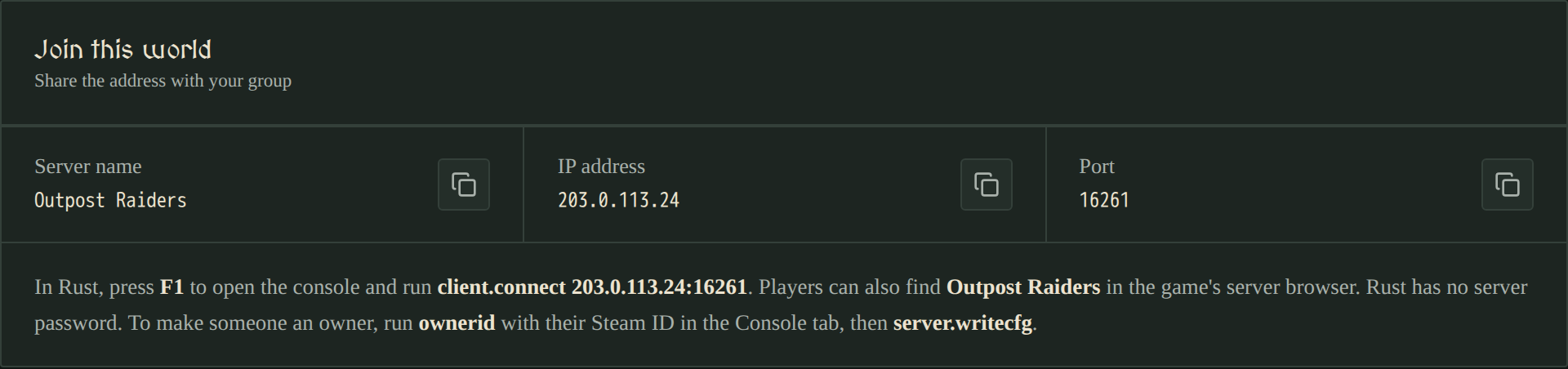
client.connect 203.0.113.24:28015with the server's address and port, and press Enter.
Every server is also in the game's server browser, under Community, by its name.
Become an owner
On the server's console, ownerid with your 64-bit Steam ID (7656119…) makes you an owner and moderatorid a moderator; server.writecfg keeps them in users.cfg. Reconnect to get the rights.
If you can't join
- Wrong version or protocol. Your game and the server must be on the same update; after Rust's monthly update the server must update too.
- Connecting never finishes. The host must open the game port over UDP.
- Not in the browser. A new server takes a few minutes to appear; join by IP meanwhile.
- Banned. The owner lifts a ban with
unbanand your Steam ID on the console.
On HostForge
The Overview tab shows the address and port to paste after client.connect. Your Steam ID from the settings is made an owner when the server starts, and the Console tab runs ownerid, kick and ban without joining the game.
Move your Rust world to another server
A Rust world is a few files in the server's identity folder. Moving it to another server works within the same Rust version, onto the same map size and seed.
1. What to copy
From server/<identity>, with the server stopped:
- The world:
proceduralmap.<size>.<seed>.<version>.sav. Its name says which map it belongs to. - The player databases, each
.dbwith its.db-walbeside it: blueprints, states, identities, deaths, tokens, clans. cfg/users.cfgandcfg/bans.cfg, to keep owners and bans.
The .map, .navmesh and occlusion files are caches; the new server builds them again.
2. Match the map and version
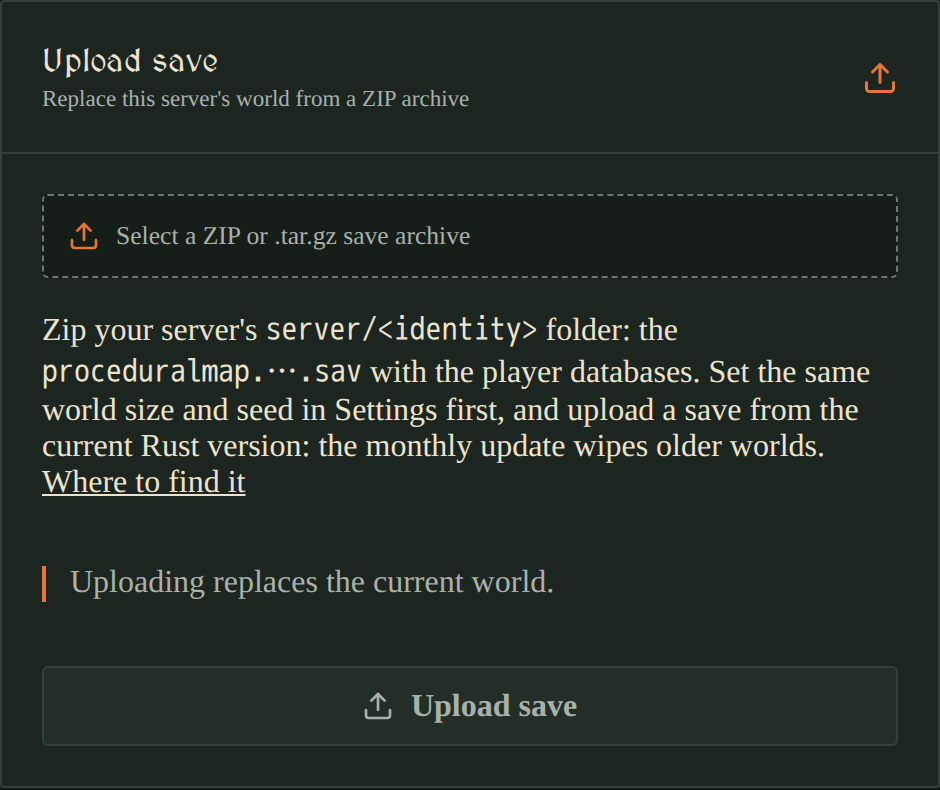
Start the new server with the same server.worldsize and server.seed as the save's name. The last number is the save version: a server on a newer version won't load an older world, which is what Rust's monthly wipe is.
3. Load it
Put the files in the new server's identity folder and start it. It logs Spawning … entities from save as it loads your world.
On HostForge
Set the same world size and seed in Settings, stop the server, open Save and upload a ZIP of the identity folder, or a .tar.gz backup from another host. HostForge checks the save's map and version and tells you what to change if they don't match.
A Rust server on HostForge
HostForge installs and updates the server, opens its ports, keeps WebRCON inside, generates your map from the size and seed you choose, makes your Steam account an owner, saves before every stop and backs the world up daily.
Then join it by IP, or start a free one on HostForge.