
Set up and join a Minecraft Java server
Install Java 25, download the server, accept the EULA, set server.properties, open TCP port 25565, join by address and move a singleplayer world onto it.
A Minecraft: Java Edition server is one Java program from Mojang. You need a machine that stays on, Java, an open TCP port, and the release your players run.
1. Install Java
Each release names the Java it needs. Minecraft 26.3 needs Java 25; 1.21 releases needed Java 21. Install a Java runtime such as Eclipse Temurin, then check it with java -version.
2. Download the server
Download server.jar for your release from Mojang's Minecraft website, and put it in an empty folder: the server writes its world and settings next to itself. The same release as your players' game matters, because a client joins only a server of its own release.
Paper is a popular alternative from PaperMC: the same game, faster with many players, and it loads plugins. It downloads and patches Mojang's server itself the first time it runs. A world Paper has run can't go back to Mojang's server.
3. Accept the EULA and start it
Start it once from that folder:
java -Xms1G -Xmx3G -jar server.jar nogui The first start stops at once and writes eula.txt. Read the Minecraft EULA, set eula=true in that file, and start it again. The server creates world, server.properties and the lists (ops.json, whitelist.json, banned-players.json, banned-ips.json), and is ready when it prints Done (…)! For help, type "help".
-Xmx is the most memory Java may use for the game; keep it about a gigabyte below the machine's free memory, for Java itself. A new world took about 1.1 GB with nobody on, and grows with every player who explores.
4. Set server.properties
Stop the server, edit the file, start it again. The common ones:
server-port: the port players connect to, 25565 by default.motd: the text under the server's name in players' server lists.max-players,gamemode,difficulty,view-distanceandsimulation-distance.white-listandenforce-whitelist: only the players on the whitelist get in.level-seedandlevel-type: only for a new world.online-mode: keep ittrue, so only players signed in with a Minecraft account can join.
difficulty and gamemode apply to a new world; an existing world keeps its own, which the difficulty and defaultgamemode commands change. PvP and keep inventory are game rules (gamerule pvp false, gamerule keep_inventory true), saved in the world.
5. Open the port
Players connect over TCP on server-port. Forward it on your router to the machine and allow it in its firewall. RCON (enable-rcon) uses a second port; keep that one closed to the internet.
6. Stop it safely
Type stop in the server's console. It saves the players and every dimension, then exits, in about a second on a small world. Closing the window or killing the process can lose what happened since the last autosave.
Join a Minecraft Java server
You need the server's address, with its port unless it is 25565, and Minecraft: Java Edition on the same release as the server. There is no server password in Minecraft: a private server keeps a whitelist.
Add the server
- From the title screen, choose Multiplayer.
- Choose Add Server, give it any name, and enter the address as the Server Address, for example
203.0.113.24:25565. - Choose Done, then pick the server in the list and choose Join Server.
Direct Connection joins once without saving the server in the list. The list also shows the server's message, how many players are on and its release.
Match the server's release
A client joins only a server of the same release, and the launcher starts the latest one. To play on an older server, add an installation for its release in the launcher's Installations tab. When the server updates, everyone updates with it.
Get on the whitelist
On a server with the whitelist on, only listed players get in. An operator adds you from the console with whitelist add and your Minecraft name. See the whitelist and operators.
If you can't join
- Outdated client or server. Your game and the server are on different releases; pick the server's release in the launcher.
- Not whitelisted. Ask an operator to run
whitelist addwith your exact Minecraft name. - Failed to verify username. The server checks every player with Mojang; sign in to the launcher again and restart the game.
- Can't connect or the server shows offline. The server may still be starting, or the host has not opened its TCP port. Check the port in the address.
- Bedrock Edition. Consoles, phones and the Windows Bedrock app can't join a Java Edition server.
On HostForge
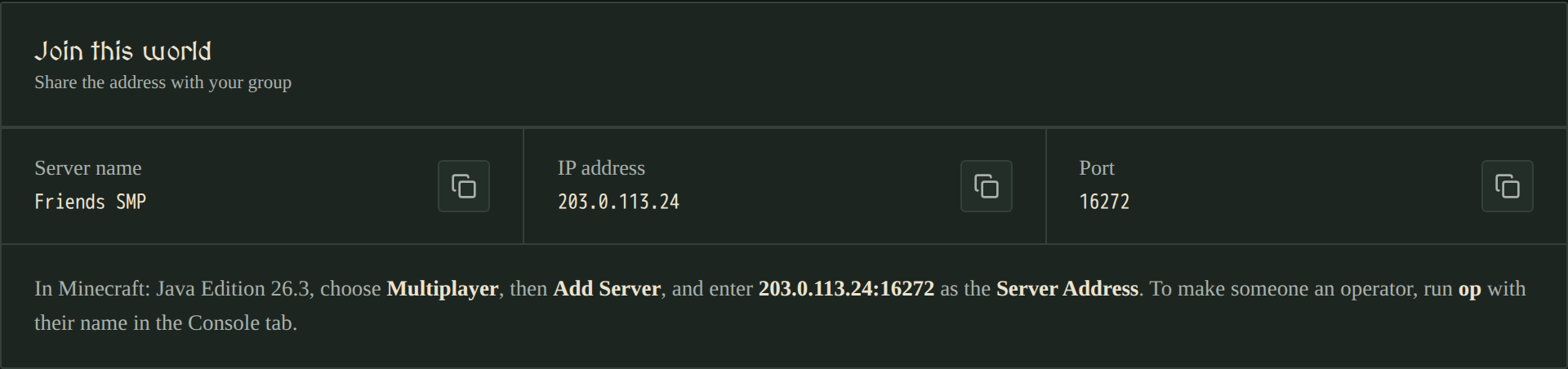
The Overview tab shows the address to paste, with its port, and the release to play. A private server lets in only its whitelist, and the Console tab runs whitelist add and op without joining the game.
Move your Minecraft world to a server
A Minecraft world is one folder, the one holding level.dat. Moving a singleplayer world or another host's world to a server is copying that folder into the server's world.
1. Find the world
- Windows:
%APPDATA%\.minecraft\saves(paste it into File Explorer's address bar). - macOS:
~/Library/Application Support/minecraft/saves. - Linux:
~/.minecraft/saves. - A server: the folder
level-namenames inserver.properties,worldby default.
Each world is a folder named after it. Since Minecraft 26.1 the dimensions are inside it, under dimensions/minecraft/overworld, the_nether and the_end; older worlds keep the overworld's region folder at the top, with the nether in DIM-1 and the end in DIM1.
2. Copy it, with the game closed
Leave the world or stop the server first, so everything is written. Copy the whole folder; session.lock can stay behind. From a server, also copy ops.json, whitelist.json and the ban lists to keep who runs it and who may join.
Worlds from Paper or Spigot
Paper and Spigot servers before 26.1 kept each dimension in its own folder: world, world_nether (with DIM-1 inside) and world_the_end (with DIM1). For Mojang's server, move DIM-1 and DIM1 into world, and drop the other two folders.
3. Load it on the server
- Stop the server.
- Replace its
worldfolder with yours, renamed toworld, or setlevel-nameto your folder's name. - Start it. A world from an older release is upgraded the first time; back it up first, since an upgraded world can't go back.
Run the server on the same release as the world or newer, never older. A world Paper has run stays on Paper.
On HostForge
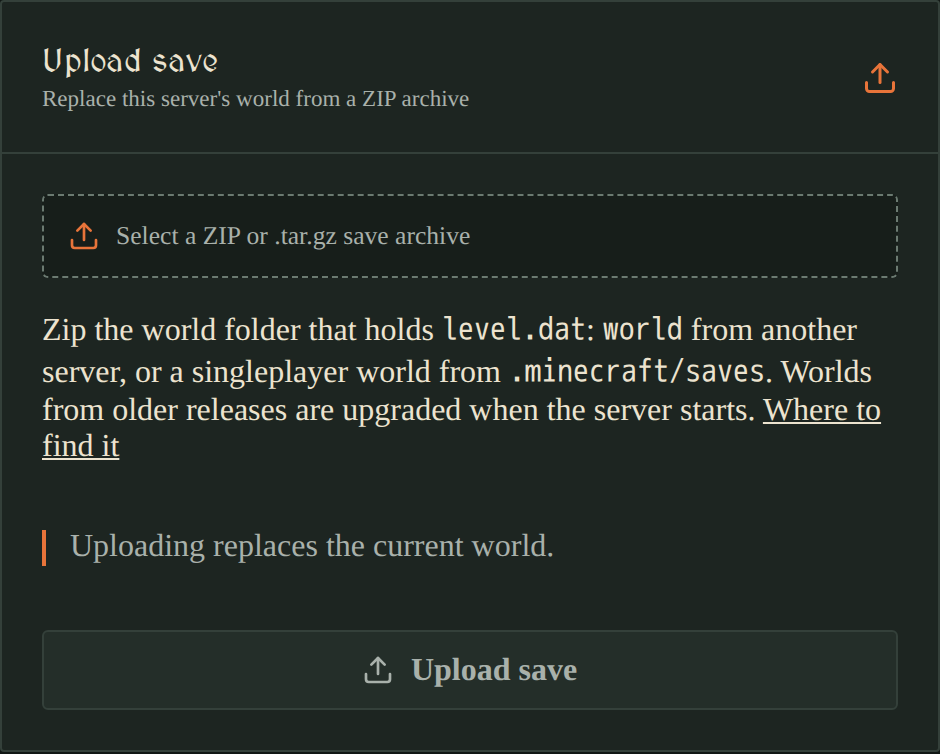
Stop the server, open Save and upload a ZIP of the world folder, or a .tar.gz backup from another host. HostForge finds the folder with level.dat, puts a Paper or Spigot world's nether and end back into it, keeps the lists that sit beside it, and the server upgrades an older world when it starts.
A Minecraft server on HostForge
HostForge downloads the server from Mojang, keeps it on the current release, writes server.properties from your settings, saves before every stop and backs the world up daily. You pick vanilla or Paper, and your Minecraft name is made an operator.
Then join it from Multiplayer, or start a free one on HostForge.